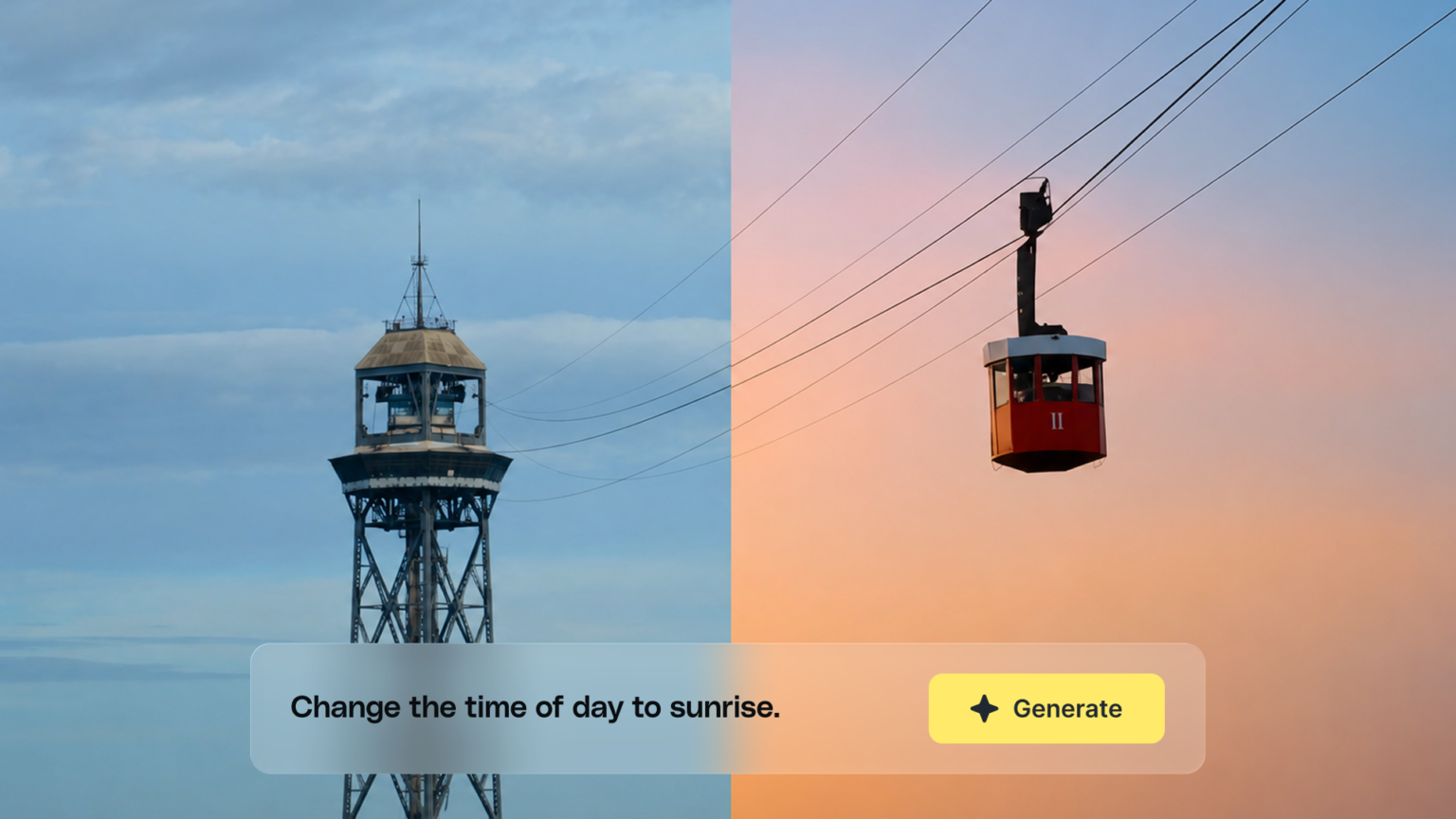
Stock footage is an incredible resource for creators, businesses, and organizations of every kind. When you don’t have the resources, time, or ability to film content yourself, stock footage gives you the ability to source almost any shot you need for a project. But stock footage isn’t always perfect – sometimes it’s close to what you need, but just needs a slight change.
That situation is exactly what our AI Video Editing tool was created for. If you’re looking to make a small change or adjustment to a clip, this gives you the ability to quickly make changes to any footage inside the Storyblocks library. Learn more about this time-saving part of our AI Toolkit, how it works, and how to make quick edits.
How our AI Video Editing tool works
Available to use with any footage clip in the Storyblocks library (including vertical video), AI Video Editing helps you skip the manual editing process. Instead of downloading the clip and editing it yourself, you can click Edit with AI to open it up in the tool and describe the changes you want to make with a text prompt. We recommend sticking with shorter, direct prompts – learn more about prompting best practices in our dedicated article.
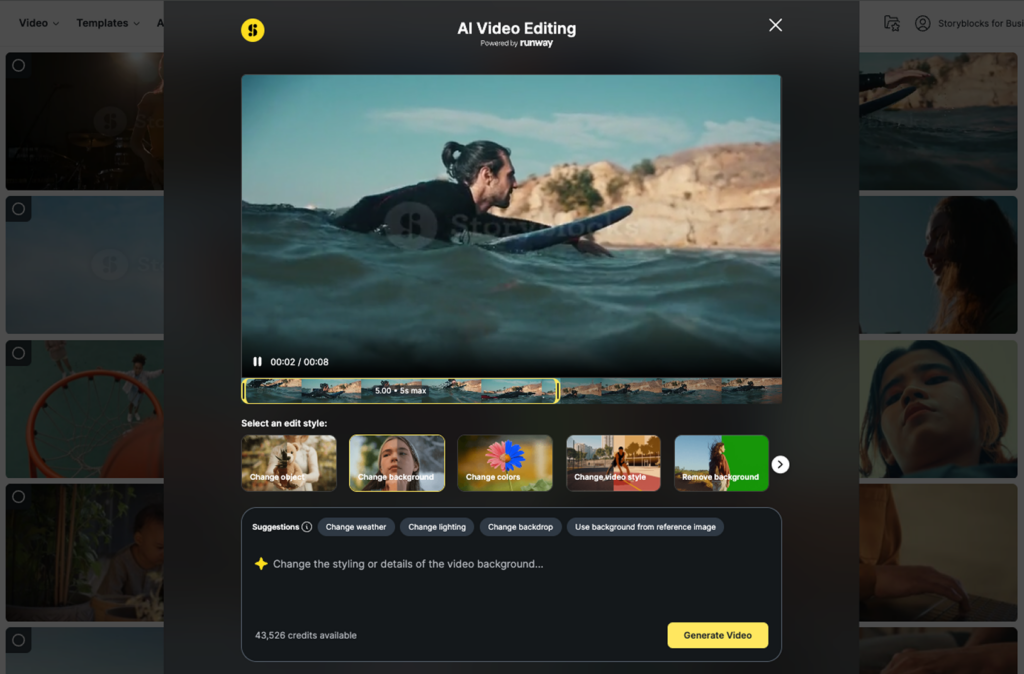
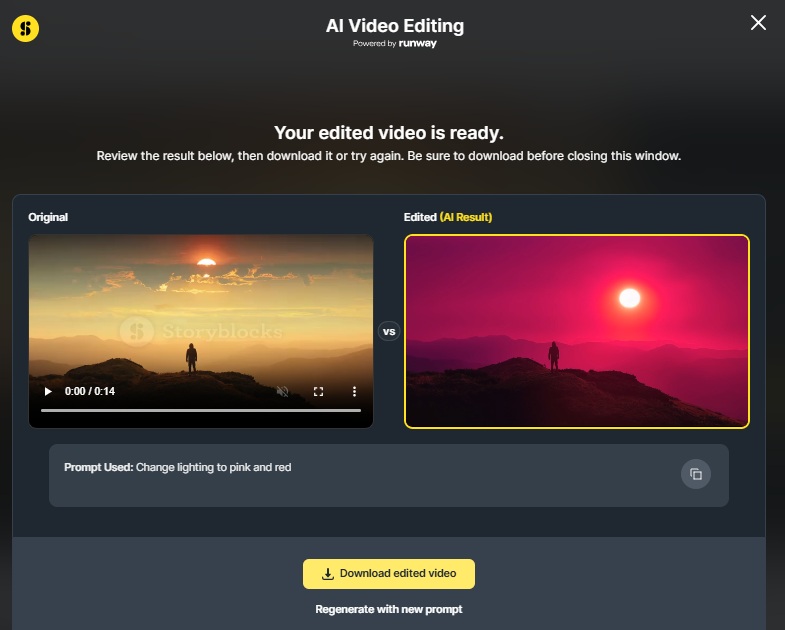
This tool is powered by Runway’s Aleph model, which combines the original clip with your text prompt to create a new custom clip for you. Our most recent update allows you to see the new clip compared to the original before you choose to download it, so you can make sure it’s looking how you want it to.
While the AI Video Editing uses credits, your credits will only be spent if you choose to download the clip. Along with that, every edited clip that’s created with this tool is covered by your Storyblocks license.
Supporting our artist community
We know many creatives have concerns with AI stealing artist’s work and not giving them credit. That’s why we asked our footage contributors to opt in to give permission for having their footage used with this tool. And every time you download a clip created with AI Video Editing, the artist who created the original footage clip it was based on is compensated.
So while this tool uses generative AI, the artists behind every clip you can use it with has allowed their footage to be edited and is paid any time an edited clip based on their original work is downloaded. This is one of the many ways we stand behind our community of artists that create the content in our 100% human-made library.
You can learn more about how we use AI in our product in our AI transparency statement.
Making quick edits
1. Choose your clip
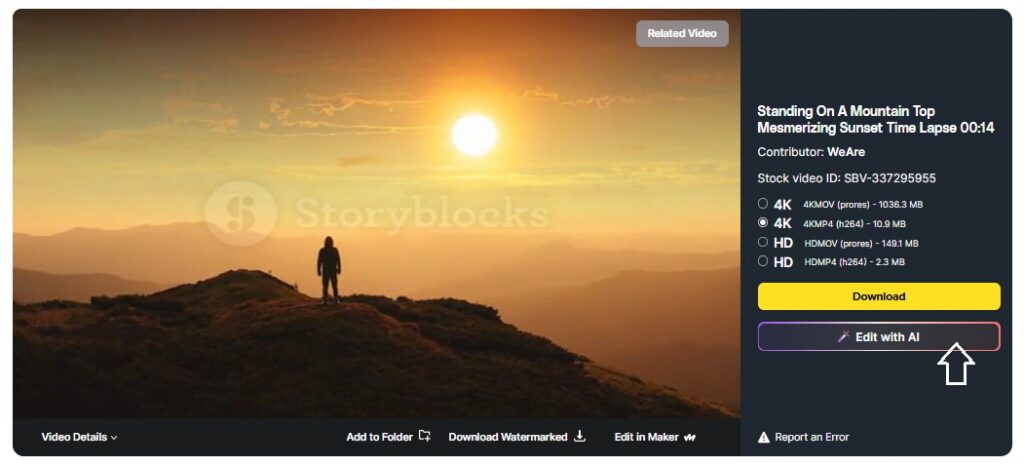
To start, you’ll have to choose what clip you want to use with the AI Video Editing tool. Once you’ve picked your clip, click on the Edit with AI button on the search results page, or on your clip’s video detail page.
2. Select the segment of your clip to edit
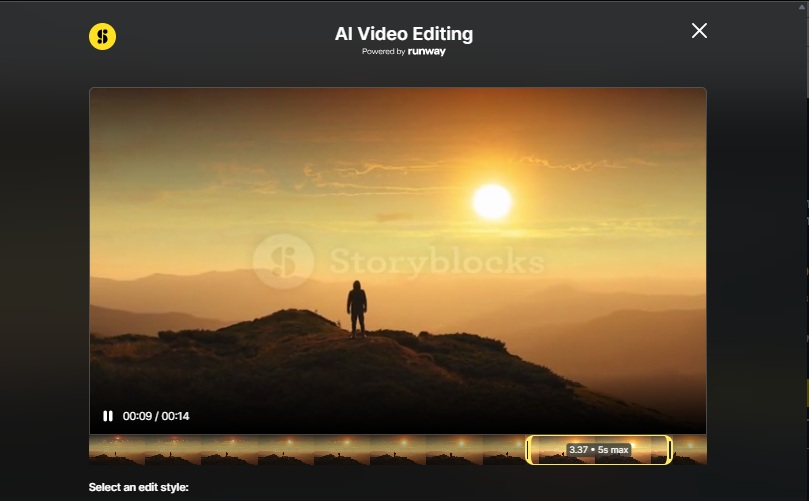
Now, you should see your clip shown in the AI Video Editing window. Right below your clip, you’ll see a timeline with a section that has a yellow border and text in the middle that shows the duration. This is what you will use to select the part of the clip you want to edit, and you can pull the handles on either end to shorten the length of your clip.
Clips can be as long as 5 seconds or as short as 1 second.
3. Select your edit style and add in your prompt
Now it’s time to get into the details of what you want to edit in your clip. We have a selection of popular edit style choices you can choose from, including changing an object, changing a background, changing colors, changing a video style, removing a background, or creating a custom edit.
Once you select an edit style, you’ll see some suggestions for prompt starters pop up at the top of the text box. These are to help you get started with creating your exact prompt.
For this clip, I want to change the background lighting to be more pink and red instead of yellow. So I’ll select the Change background edit style and the Change lighting prompt suggestion. Then, I’ll add in the specifics of how I want to change the lighting in the prompt box.
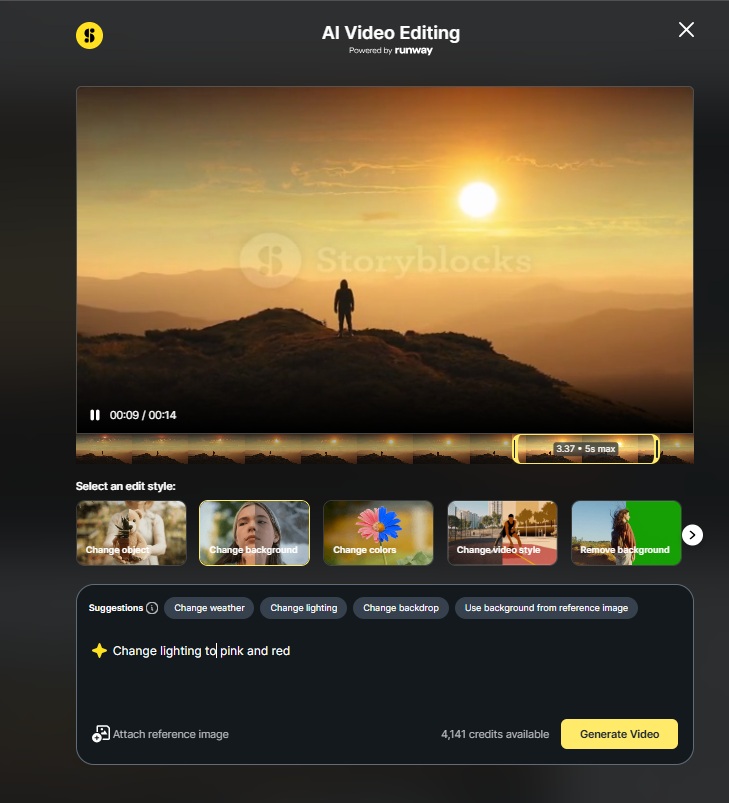
Once you’re happy with your prompt, you can hit Generate Video.
Note: Once you hit this button, you’ll see a window pop up confirming you want to use your credits to generate your edited video. Make sure you’re happy with your prompt and your chosen clip before you click Generate Video for a second time and use your credits.
4. Generate your edit and review the results
Now, your AI-edited footage is generating. You can either exit out of the window or keep it open while you wait for your edited video.
Once it’s ready, you’ll get a notification and your edited video will show next to the original clip in the window so you can see the changes. If you’re happy with your clip, you can download the edited video, or you can try regenerating with a new prompt.
Try out AI Video Editing for yourself
With a Storyblocks subscription, you’ll not only get unlimited downloads of the 6+ million assets in our 100% human-made library. You also get access to our AI Toolkit, including Voiceover and Video Editing, plus other time-saving workflow tools. Sign up today to get started and try out AI Video Editing for yourself.